Using a reMarkable Tablet in Web Meetings

Scott Hanselman posted a video earlier this month that gave me an idea. He showed how he used OBS studio and Microsoft Whiteboard to do a transparent glass whiteboard in Microsoft Teams and I saw in it an interesting way to use my reMarkable tablet to do something similar.

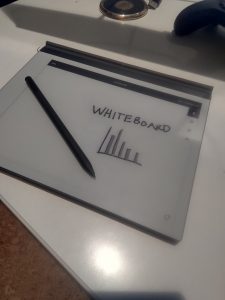
reMarkable Tablet

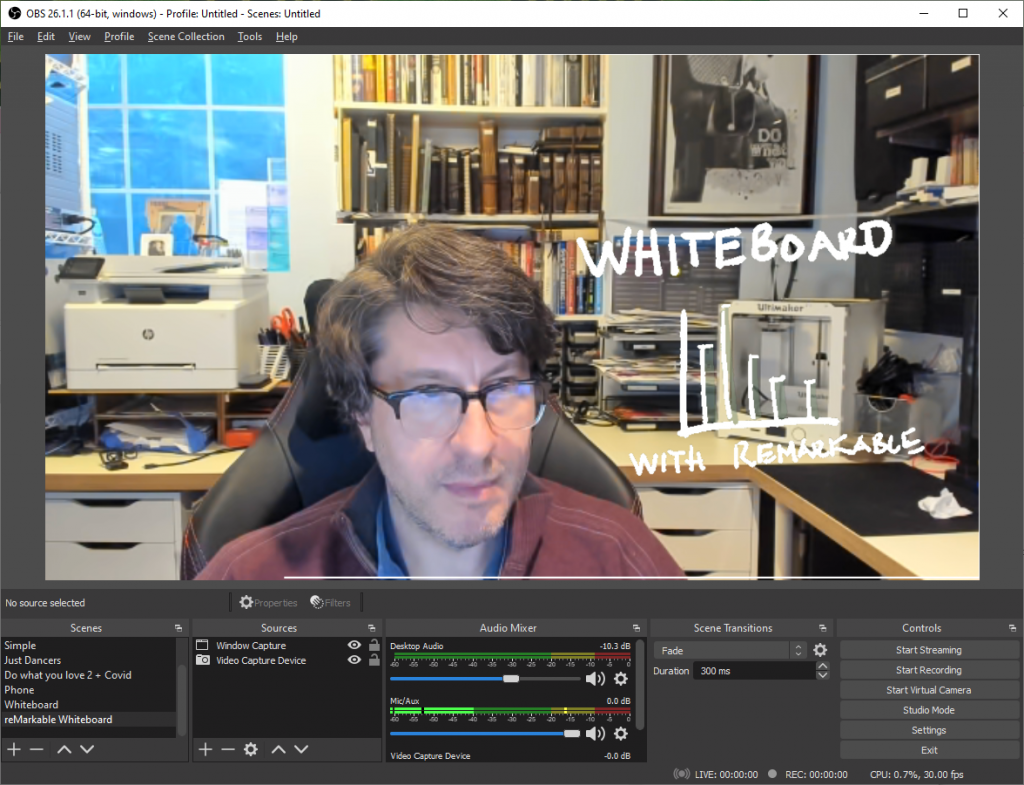
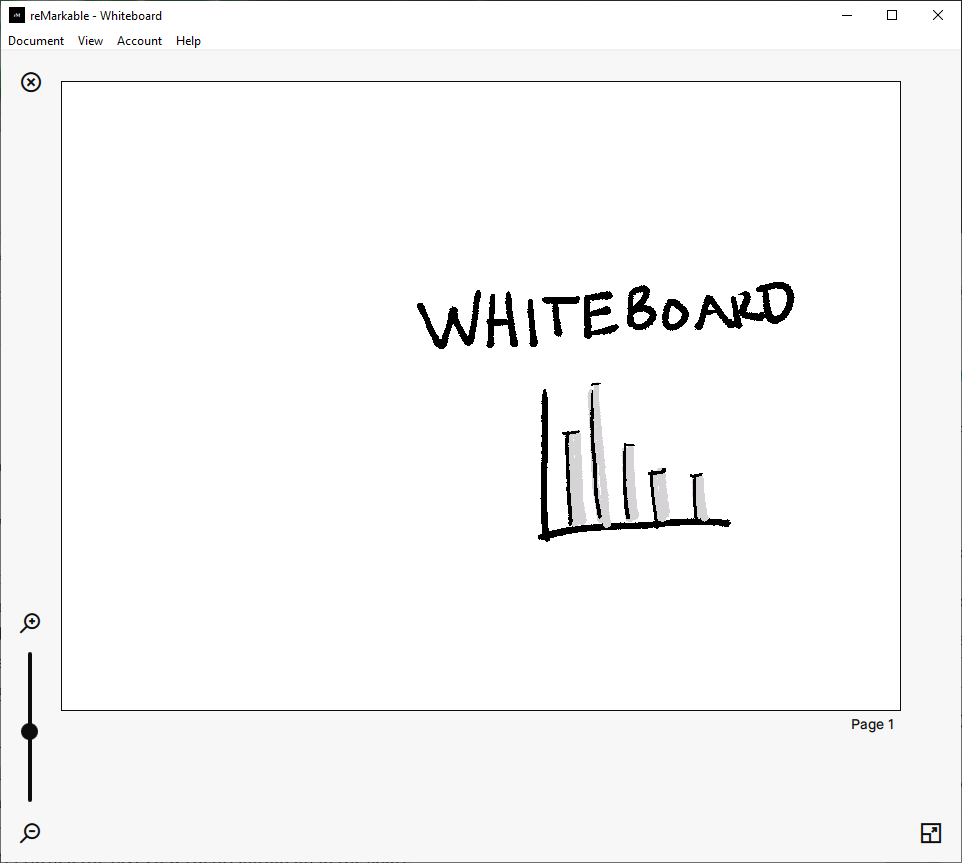
Working from home, like many of you my primary device for work is a desktop computer which does not have the drawable surface and pen of a Microsoft Surface device. Recently, I got the new reMarkable 2 paper-like tablet and I really like it. The device works with a dedicate desktop app that, in addition to helping synchronize notebooks, it has a Live View capability where the display on the computer is in sync with the tablet and update every time the page on the tablet drawn on. I was able to take the live output from the reMarkable app on my PC as an input source in OBS Studio and replicate the transparent glass whiteboard effect that I could use during Microsoft Teams meetings. If you aren’t familiar with it, OBS Studio is a free, open-source application for Windows, macOS, and Linux that you can use to stream and record from your computer, mixing video, desktop windows, audio sources, and graphics. Here is how I did it:

  1. On my reMarkable 2 tablet, I added a new page to a notebook, using the blank page template and set the orientation to landscape.
  2. On my PC, I started the reMarkable app
  3. On my reMarkable tablet, I turned the LiveView (Beta) option on in the share menu
  4. Once I did, that I was prompted on the app on my PC to accept the LiveView request. At that point, the app’s screen mirrored my tablet.
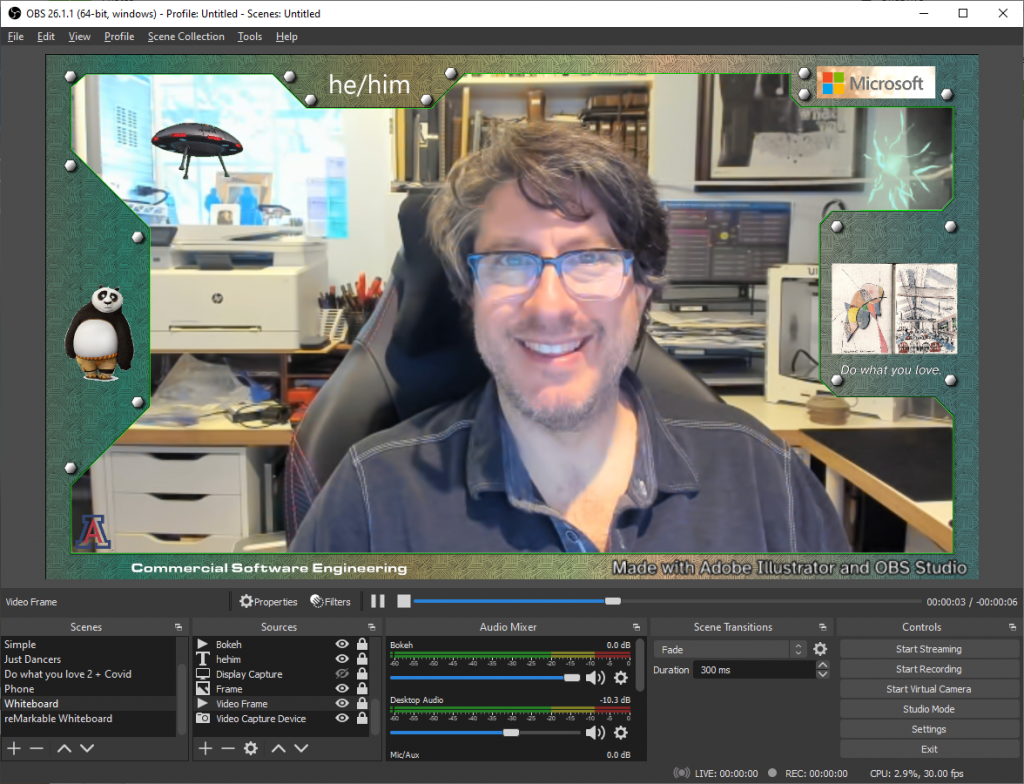
  1. In OBS Studio, I added a Video Capture Device for my webcam and stretched it to the size of the screen output.
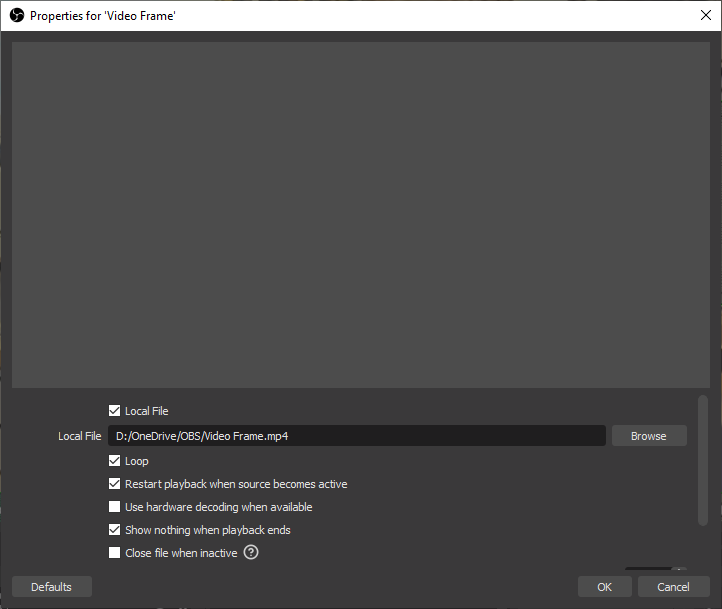
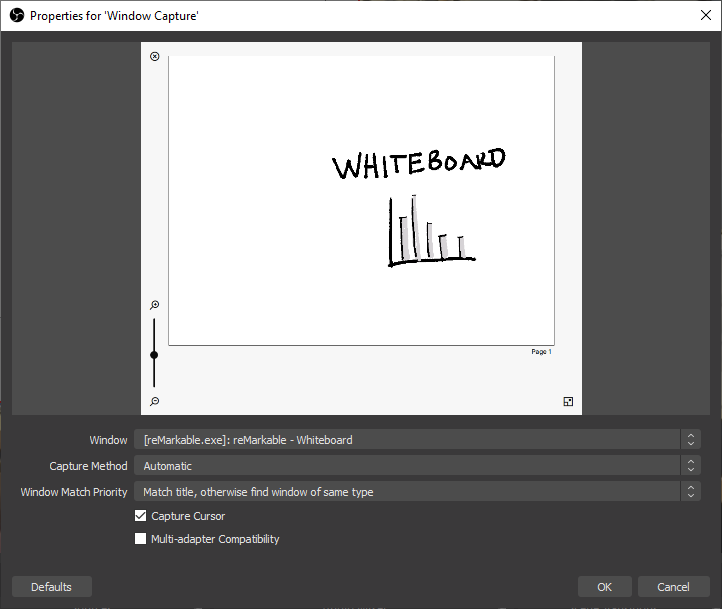
  2. I then added a Window Capture source, selecting the reMarkable app as the Window.
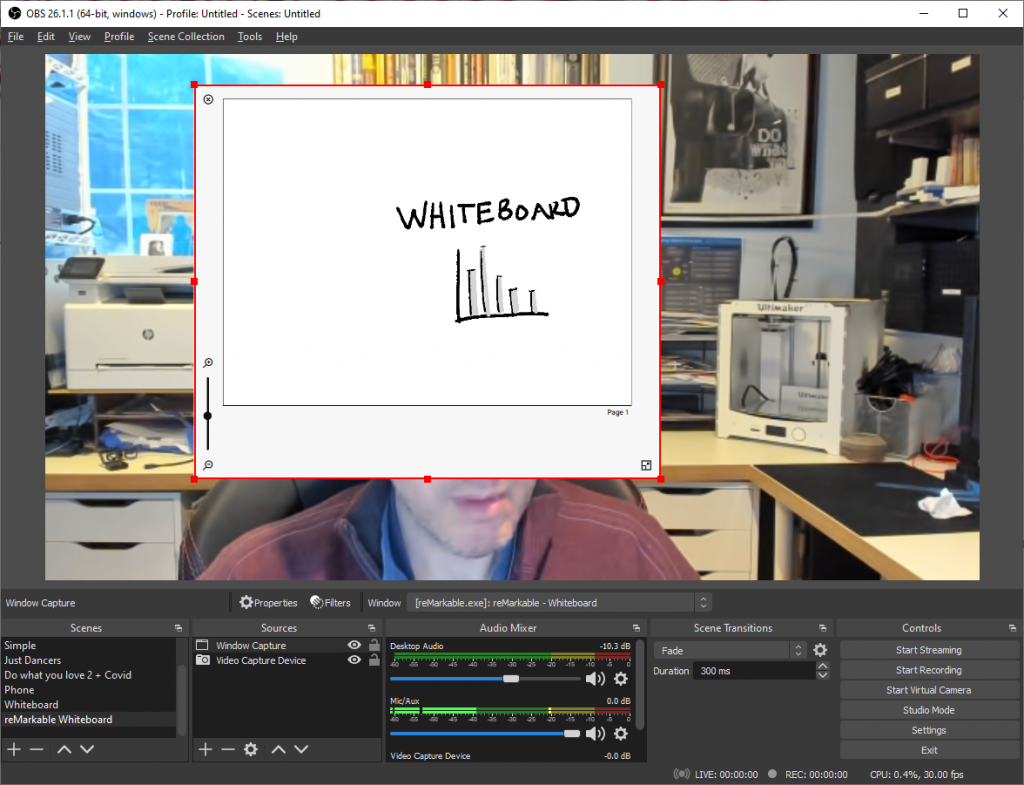
  1. Now the whiteboard is positioned over the video capture device. Before I resize it, I need to crop the edges.
  1. I drag the edges of the new Window Capture element with the Alt key pressed to crop out the frame and chrome around the whiteboard.
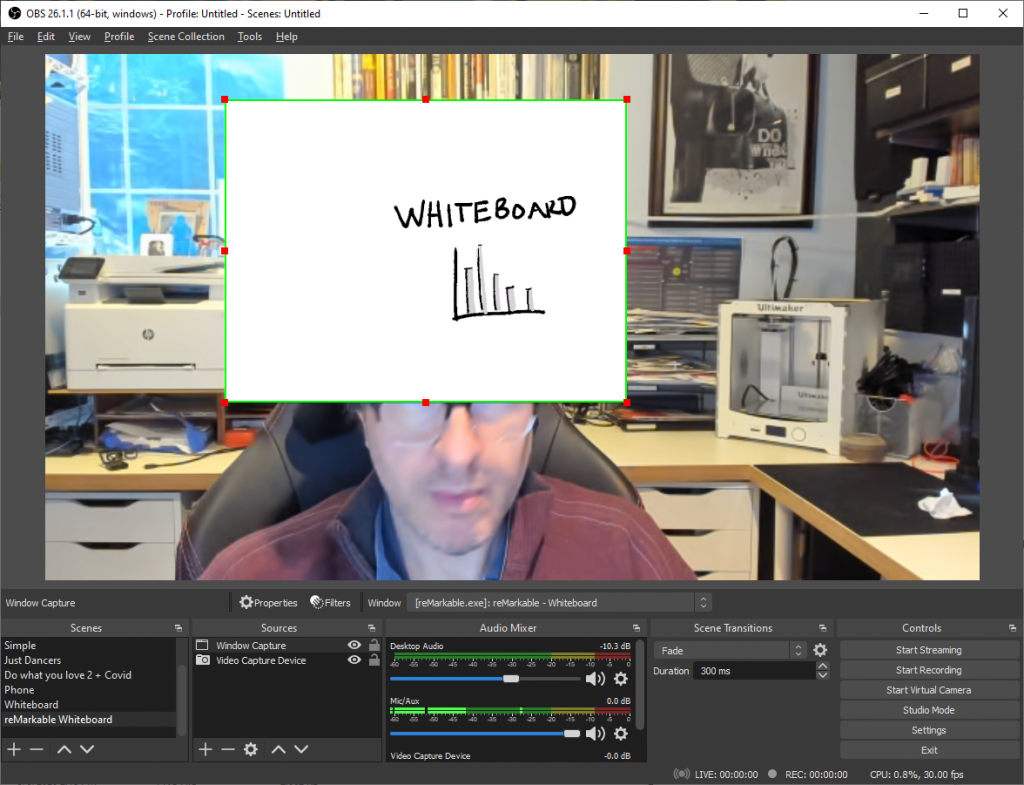
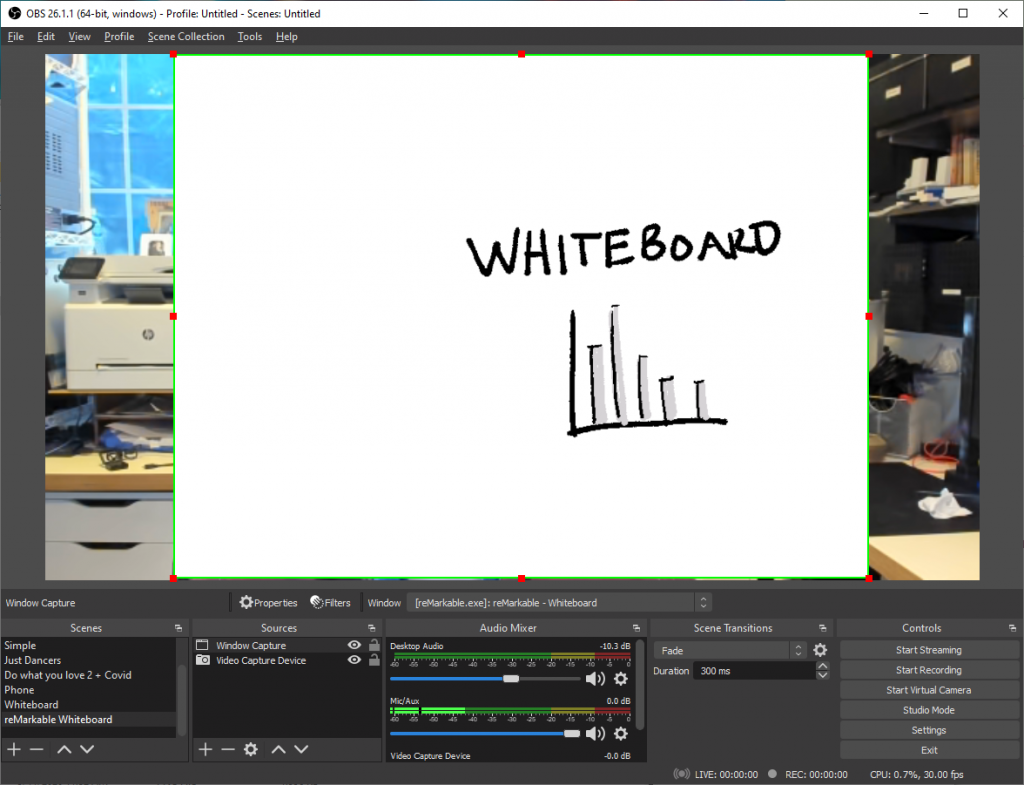
  1. Now I resize the whiteboard so it covers my Video Capture Device.
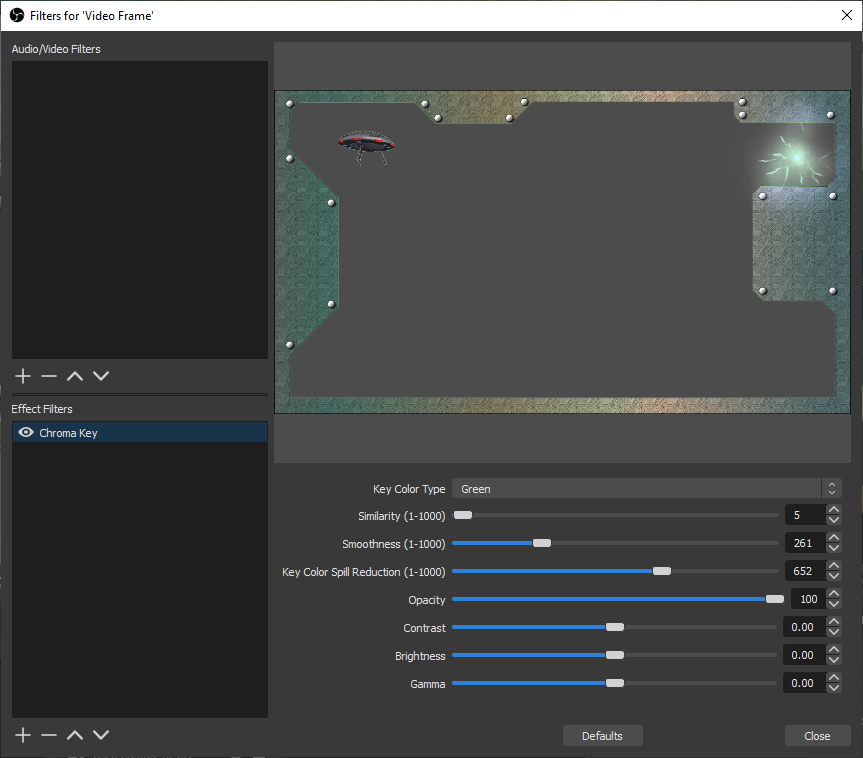
  1. The last thing I do is add filters to the Window Capture to make it all work. Select the Window Capture source, right click and select Filters…
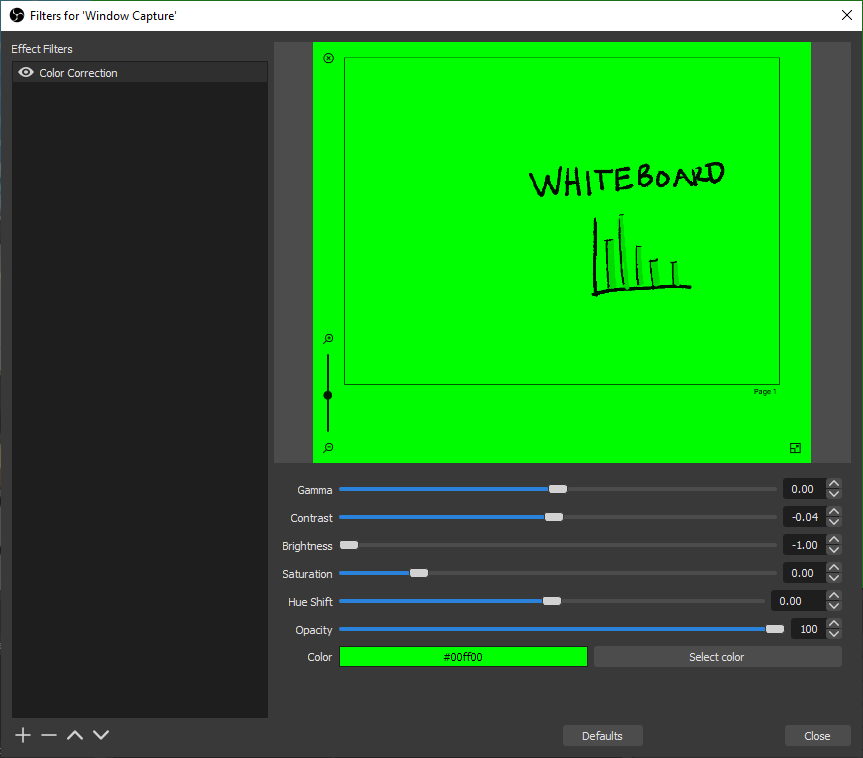
  2. Add a Color Correction filter to make the white background green.
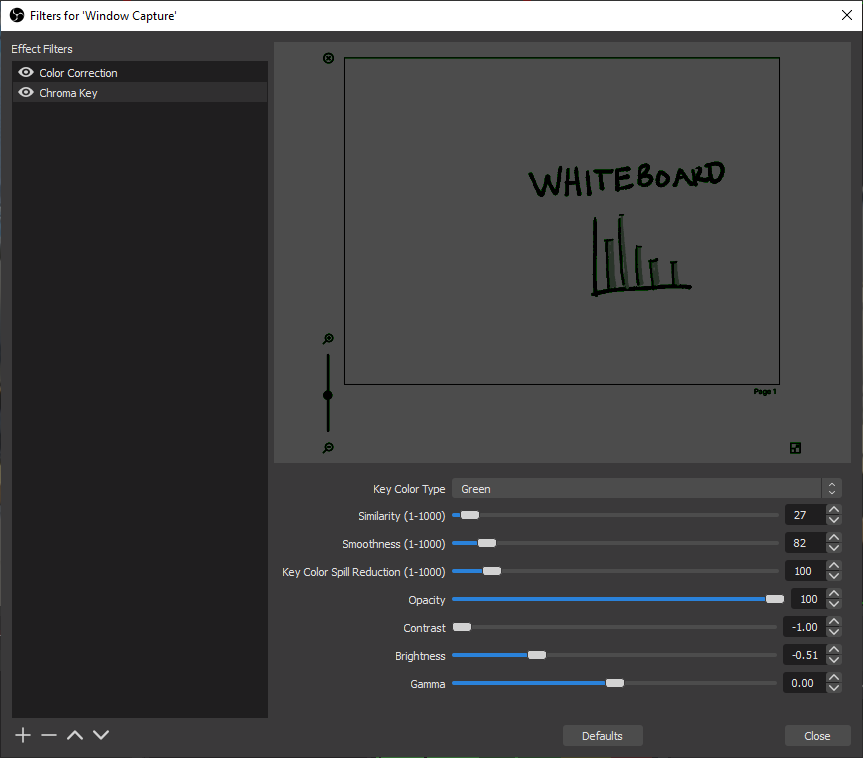
  1. Add a Chroma Key filter to remove the background. You may need to adjust the Similarity value if you use gray pens on the reMarkable.
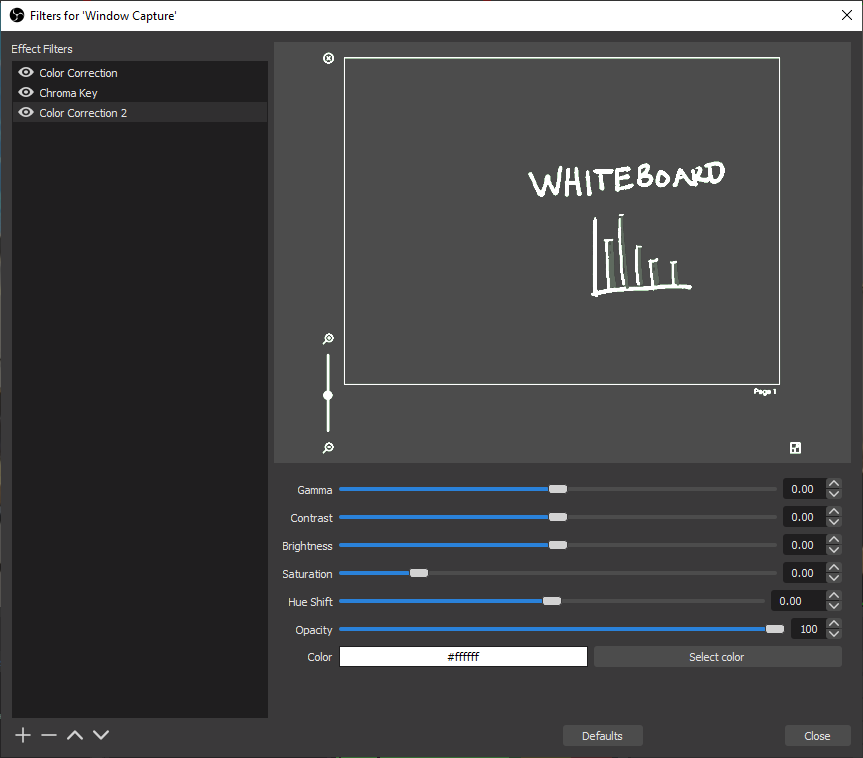
  1. Add another Color Correction filter to make the black text white.

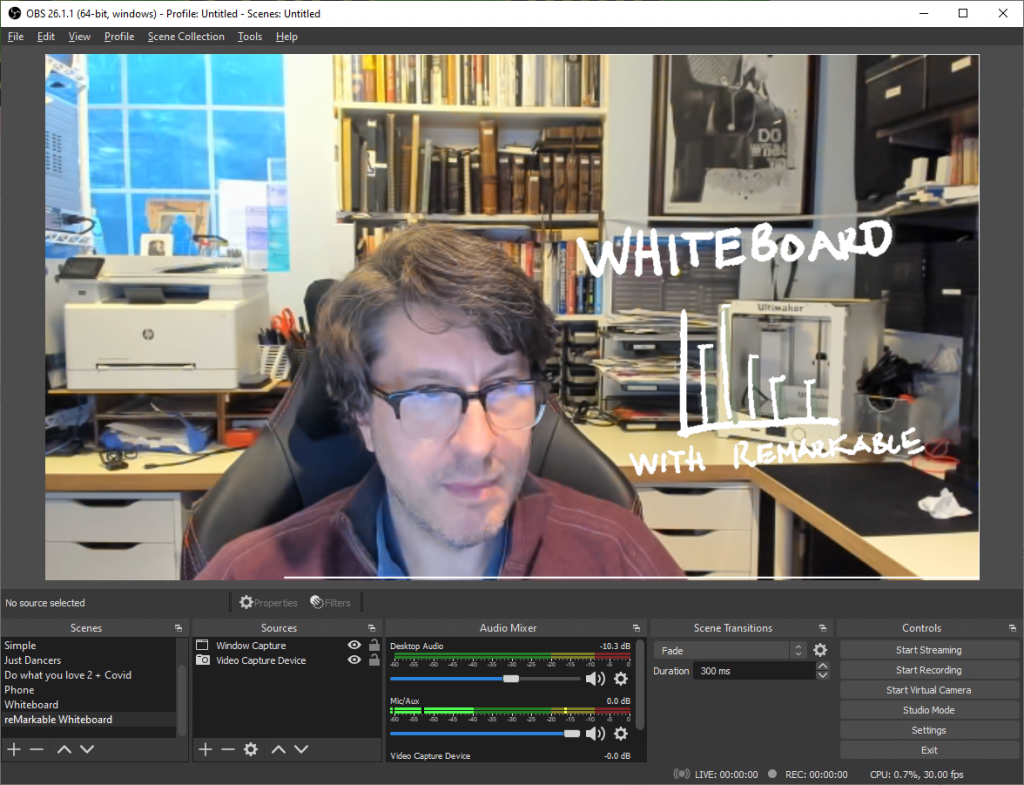
And then you can stream, record, or use OBS as a Virtual Camera in your online meetings. The whiteboard drawing from your tablet is saved and you can easily export it to a PDF or image and it is in the video as well.

A transparent whiteboard drawing with a reMarkeable tablet.

Give it a try today and add more drawing to your online meetings!

Limitations

Some users have pointed out a limitation to the LiveView (Beta) feature in the reMarkable app where erasing on the tablet does not immediately erase on the LiveView. A quick fix to refresh the LiveView is to tap the Full-screen button in the lower right corner of the app to make the app go full screen, and then tap it again to go back to the original size. This triggers a refresh of the LiveView with the erased ink. I reported this bug to the reMarkable team.

TechCreativeCoaching.com

The past few years I have been doing coaching and mentoring and have found it greatly rewarding helping others. Most people were finding me through my work at Microsoft and LinkedIn but I thought it was time that I launched a website focusing on it. My specific specialty is helping people combine their creative passions with their love of technology. Take a look today at TechCreativeCoaching.com.

Take a look at what my clients have to say, the reading list, and the video list. I’d love your feedback, and if you want to book an appointment to discuss your career, please fill in the form on the home page and I’ll get back to you.

Virtual Flight Sketching

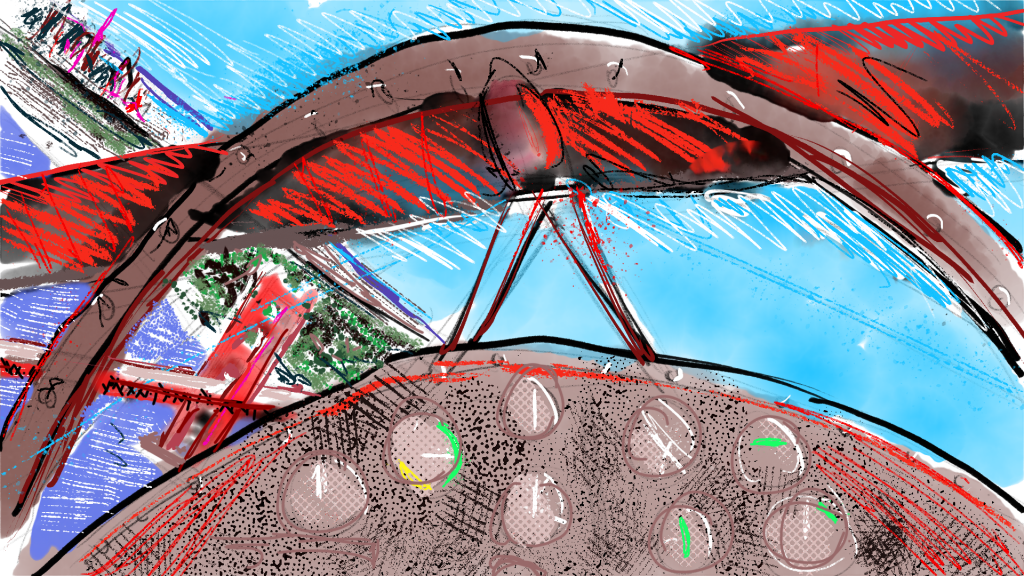
The New Microsoft Flight Simulator has opened a new location for me to take my sketching: anywhere in the world. One of the first games that I played on my first computer, an IBM PCjr was Microsoft Flight Simulator in the 1980s and that started my journey into computation with a fascination of a three-dimensional environment represented on a flat screen. The technology has advanced amazingly since then and so have my drawing skills.

San Francisco Bay from my Aviat Pitts Special S2S drawn with Adobe Fresco

The imagery and geometry that is now in Microsoft Flight Simulator is very accurate, lifelike, and for me, an urban sketcher, good enough to sketch. The application give me the foreground, an airplane cockpit, the midground, buildings and geology, and the background of scenic vistas with accurate weather rendering.

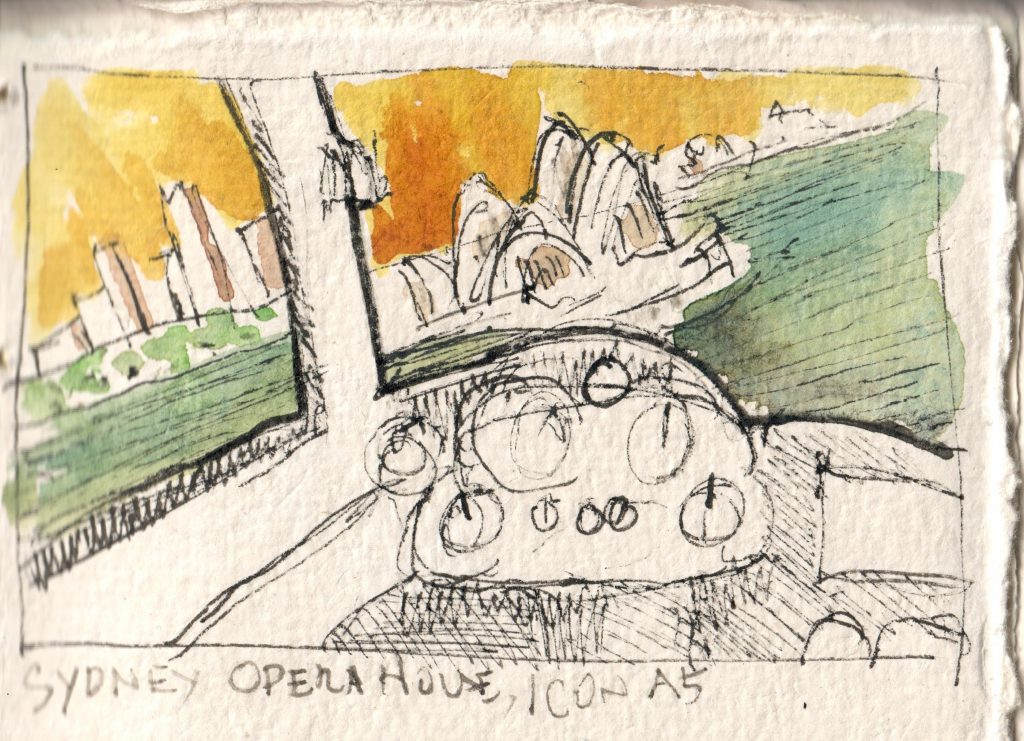
Sydney Opera House from my Icon A5 drawn in my journal

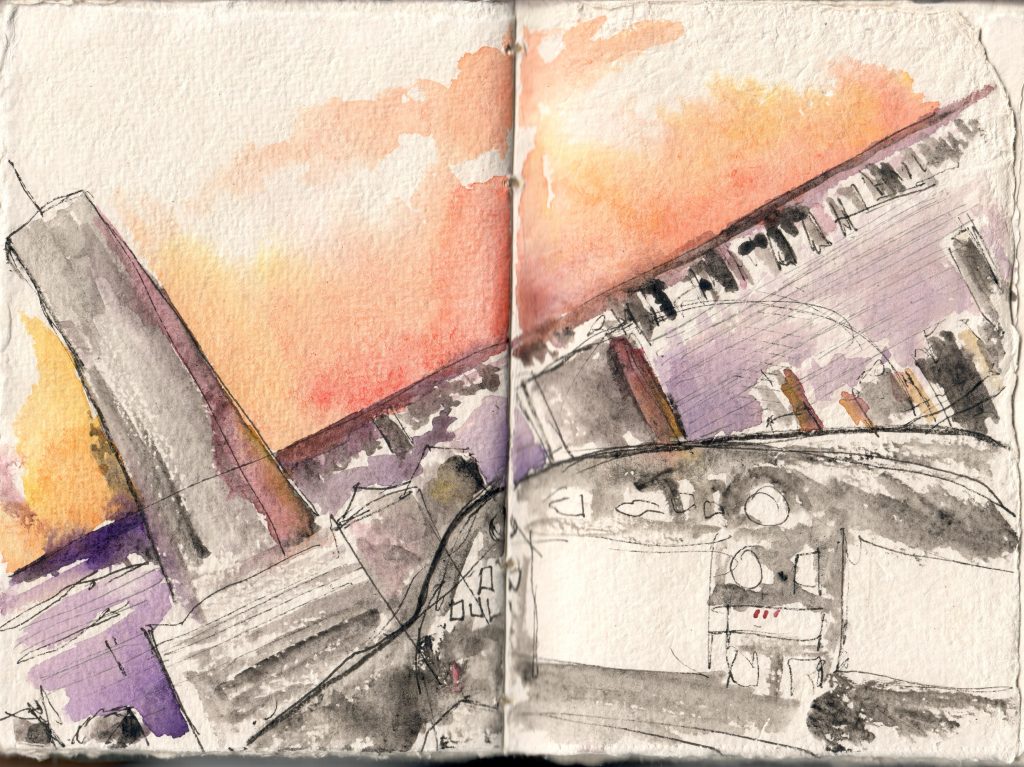
I pick a location, an airplane, and fly to get just the right point of view, then I press [Pause]. I then start sketching in my journal from Iona Handcrafted Books, Adobe Fresco, or even my Sketch 360 app. Since these sketches aren’t from real life, I shouldn’t call them Urban Sketches, so I’ve decided to call the Virtual Flight Sketches with the hashtag #VirtualFlightSketch.

Manhattan at Sunset from my JMP VL-3

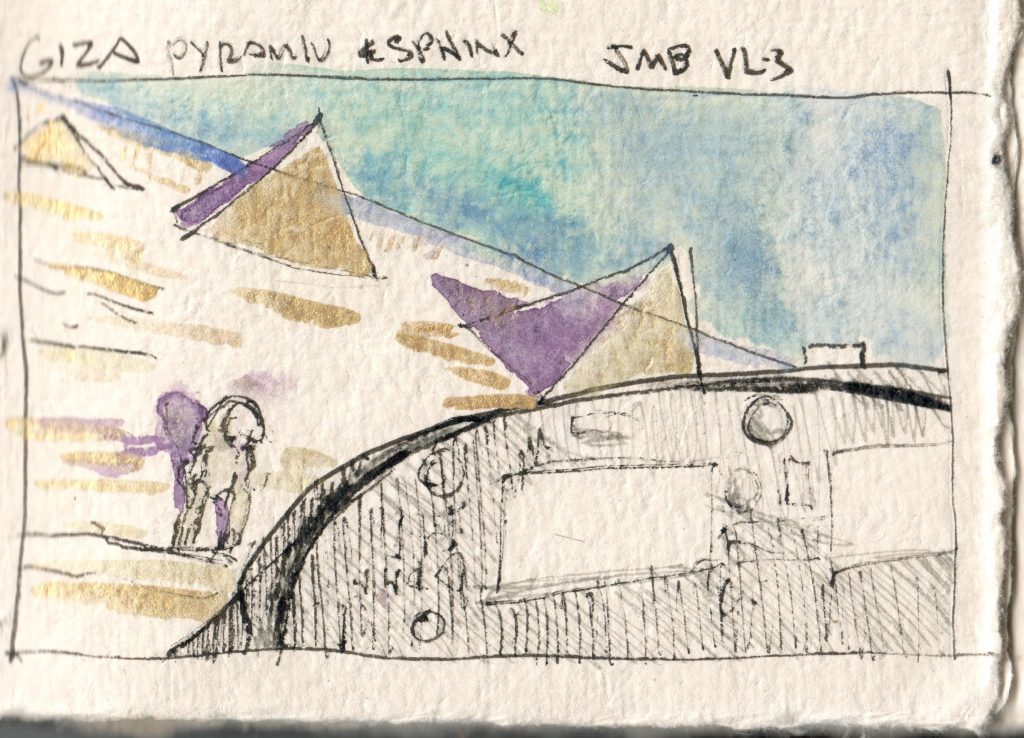
I’ve always wanted to see the pyramids of Egypt.

Giza Pyramids an Sphinx from my JMP VL-3

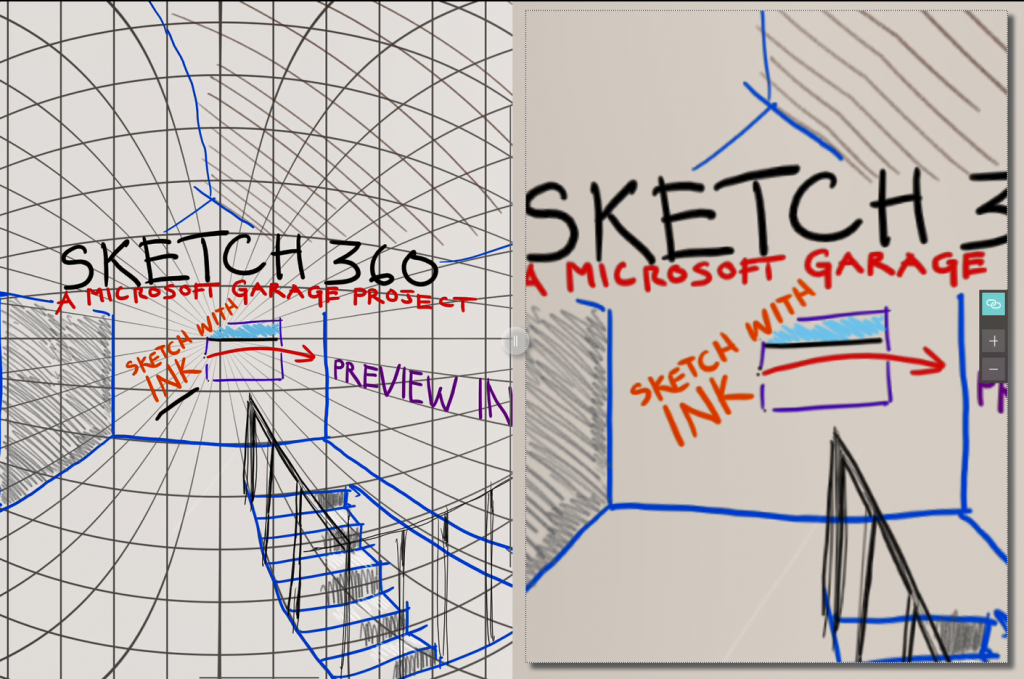
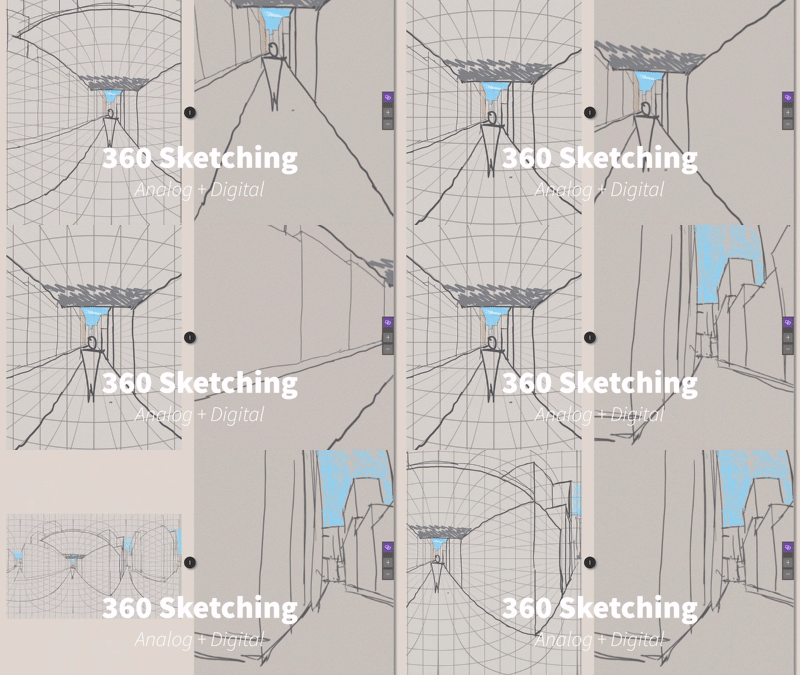
I created my latest Virtual Flight Sketch with my Sketch 360 app and exporting as an animation video that you can interact with.

San Francisco from EX ZLin Savage Cub

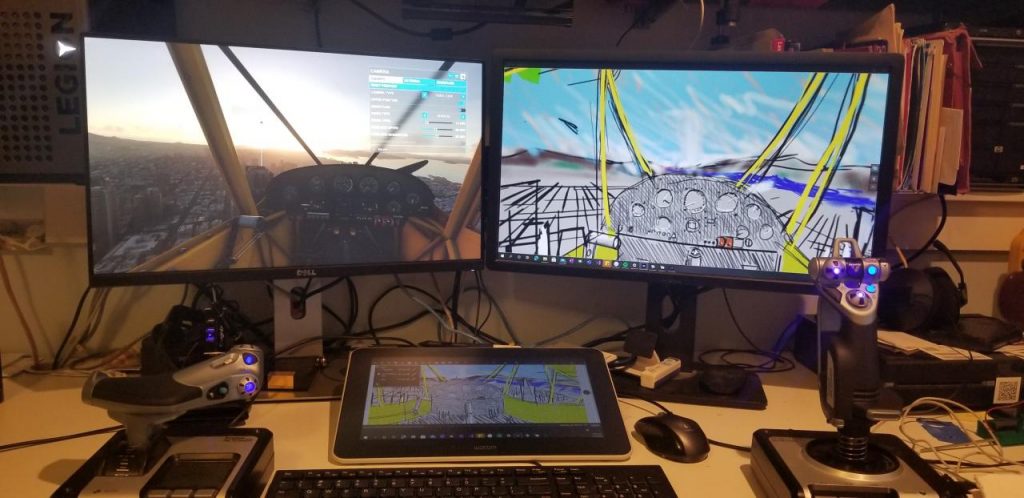
For this sketch, I had the Flight Simulator in the left screen and Sketch 360 running on the Wacom One display tablet for the drawing canvas and on the right display where it showed the 360 view.

360 Sketching studio setup.

The funny thing about pausing in Flight Simulator is that the plane stops in mid-flight but the clock does not stop. This means that if I’m doing a sketch at sunset, the lighting is going to change during the time of my sketch. It adds a realistic aspect to the experience. I know that I could easily take a screenshot and work from that, but I choose not not.

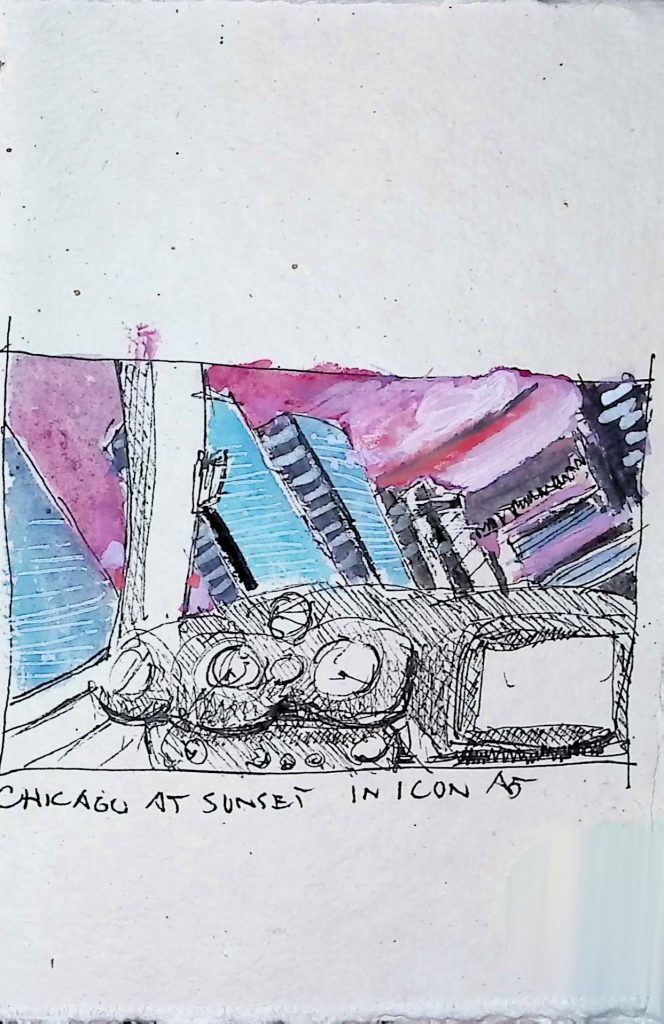
Chicago at Sunset in Icon A5 Virtual Flight Sketch

Where should I fly for my next #VirtualFlightSketch ?

Analog + Digital 360 Sketching Workshop

Workshop lead by Michael S. Scherotter, Creative Experience Engineer at Microsoft
Codame Art+Tech Festival
GitHub, San Francisco
November 26, 2019 2-5 PM

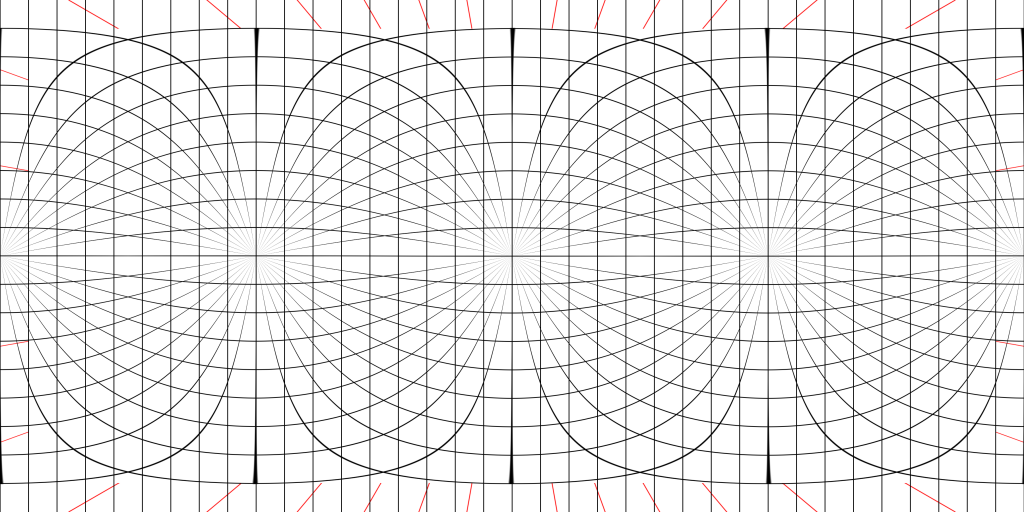
Come learn a new fun way of sketching to create immersive panoramic drawings from a single point of view looking in all directions. This workshop will cover both drawing by hand on paper aided by an equirectangular projection grid as well as with digital tools. See examples here of 360 Sketches Created by the Instructor, Michael Scherotter.

  1. Introduction to Equirectangular Projections
  2. Exercise: Drawing on Equirectangular Grid Paper
  3. Photograph drawings, crop, and load into tablets & VR Headsets (like Oculus Go)
  4. Demonstrate 360 Drawing with Sketch 360
  5. Exercise options
    1. Make 360 sketches with Sketch 360
    2. Make 360 sketches with any drawing app using Equirectangular Grid underlay
    3. Continue Paper 360 drawing
  6. View results in tablets & VR Headsets

Resources

Equirectangular Projection Grid

Sign up Today: there’s still space!

Sign up

Analog + Digital 360 Sketching Workshop at CODAME Festival and Creative tool Chains

On October 26 2019, I will be leading a workshop on analog+digital 360 sketching at the CODAME Art+Tech Festival in San Francisco, CA. The festival is 3-day conference about the intersection of art and technology with many mind-expanding workshops and exhibitions helping people see how artists, musicians, technologists, and researchers are fusing technology to artistry and creativity.

Ever since studying architecture in college, I’ve thrust myself into this intersection focusing my passion on creative tools both analog (journals) and digital (computer tablets) and using the digital to make the analog (3D printing). People have often asked me on how I draw the line: will I ever give up my journaling? Which do you like better analog, the fountain pen, or the digital pen? It’s not simple but recently, I’ve clarified it by asserting that for the digital mediums, I focus on things I can’t do easily with my analog tools of pens, pencils, watercolors, knifes and glue sticks.

Recently I’ve been focusing on a specific type of medium that I’ve created the app Sketch 360 for, and that’s the domain of the workshop on Saturday at the CODAME festival. I’m going to start the workshop with pens and paper, helping the participants understand the equirectangular projection that 360 sketching is based on and then move to digital tools.

Sketch 360

Creative Tool Chains

The aspect of creativity that has always interested me is the process that people take in their creative endeavors and the tools that people use in this process. After my architecture degree (BArch), I got master’s degree (MArch) in design tool development and have been passionate since then in crafting tools to help people be more creative. I have done experimenting recently in creating chains of creative tools like this:

  1. Using OpenSCAD (a creative tool that lets you write code to make 3D models that can be printed on a 3D printer) to design a parametric watercolor kit.
  2. Hosting that model on Thingiverse where people can customize (a creative tool) it and output a model to their exact specs that they can print
  3. Using the watercolor kit that I printed (a creative tool), to paint a watercolor
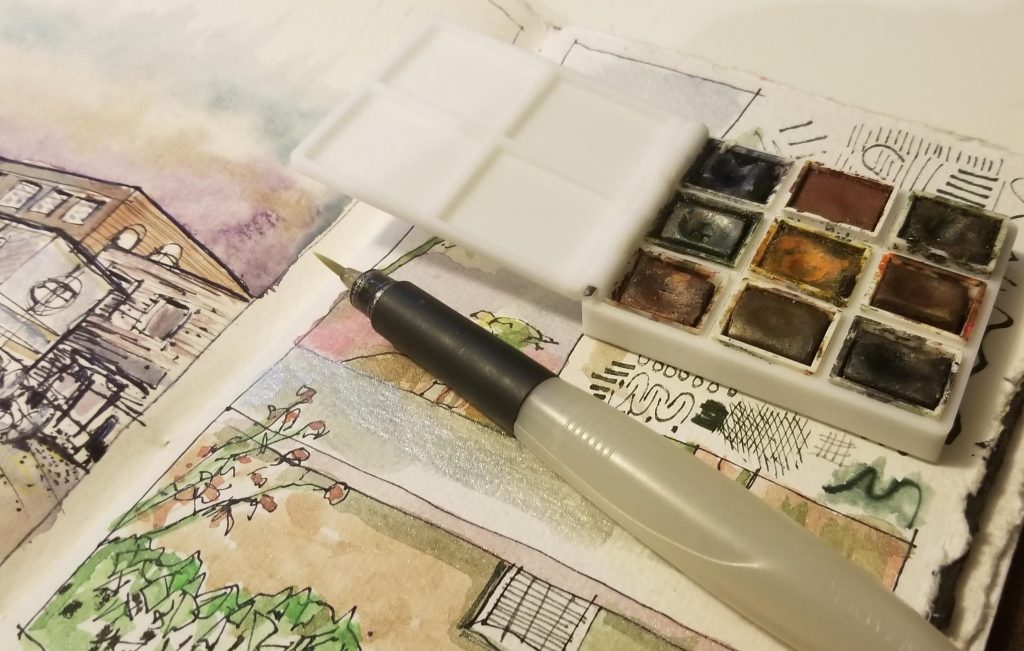
Watercolor kit

In this way, I look at a watercolor brush and code both as creative tools. Sometimes the chain has parallel links:

  1. Creating a stand for my GoPro camera that allows me to record video while creating artwork
  2. Pens and a journal creating a drawing in an airport
  3. Creating a song with a Teenage Engineering sequencer while creating the drawing
  4. Creating a video of the process.

I’m looking forward to going to the CODAME Art-Tech festival because I want to meet others who look at creativity and technology like I do: people who want to mix it up, bounce ideas, experiment, try new things. DM me at @Synergist if you want a discount code for the festival.

See you there – create with me!

Thirty Years of Artwork

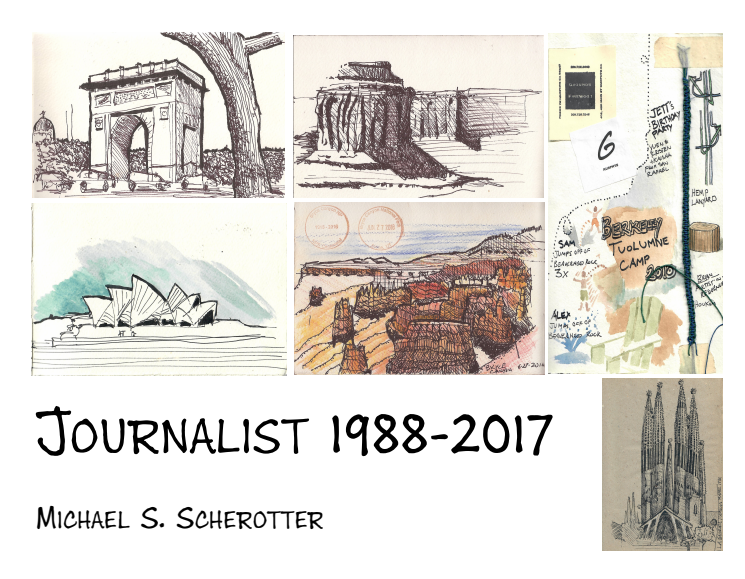
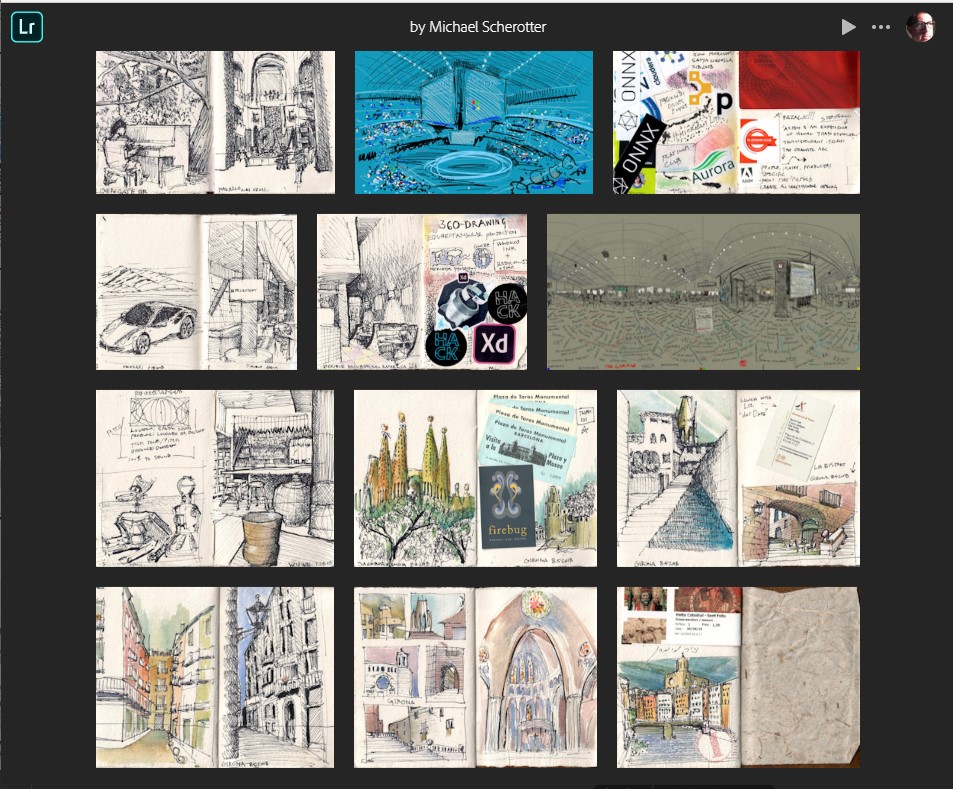
I’ve been creating artwork, primarily in journals and sketchbooks for over thirty years and have recently started cataloging it in Adobe Lightroom CC to share. Starting with a simple pencil drawing of American Airlines food dish in 1987 to a pen and watercolor sketch of Central Park last week, I’ve scanned, tagged, and uploaded much of the work. Please browse it, add your comments and give me your feedback. Create. Every. Day.

All Artwork by Michael S. Scherotter

Artwork by Michael Scherotter

Interaction 19 Conference

This week I journeyed to snowy Seattle to participate in the IxDA Interaction 19 conference. This was my first time coming to this annual conference though I have spent much of my career around the world of interaction design. For the first eight years of my career at Microsoft (2007- 2013) I focused on working with media and entertainment companies explaining and demonstrating Microsoft’s interactive media technologies giving myself a fitting moniker of Media Experience Evangelist. For me, user experience and design were always areas where I gravitated towards – so I was excited to be a part of this conference.

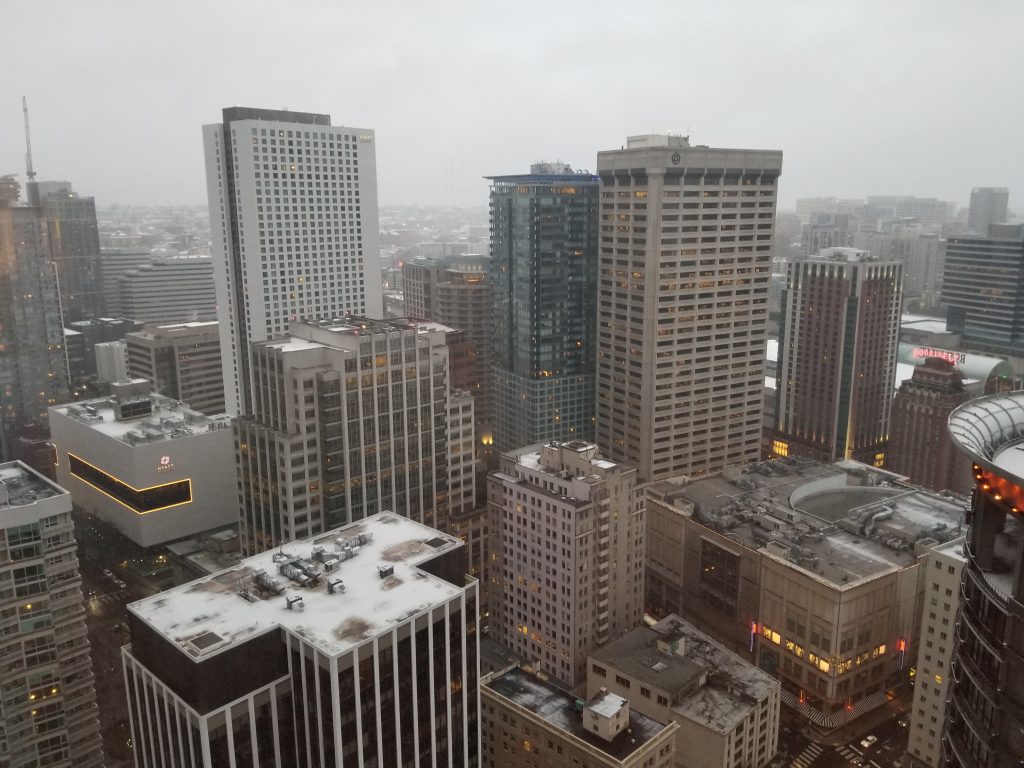
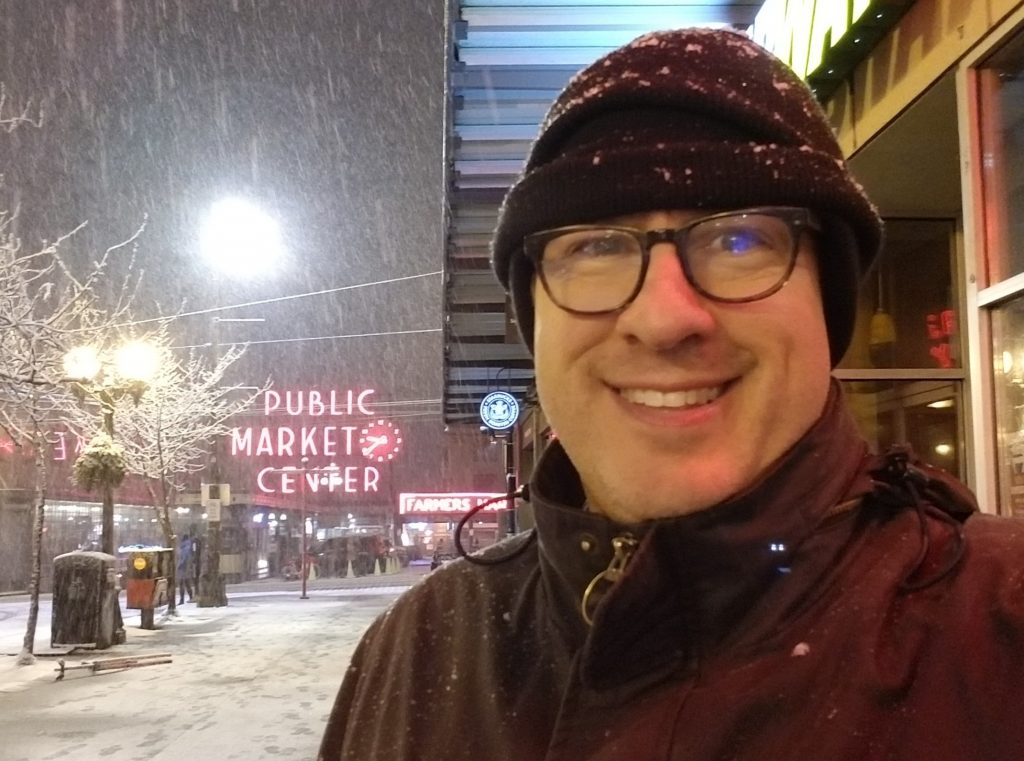
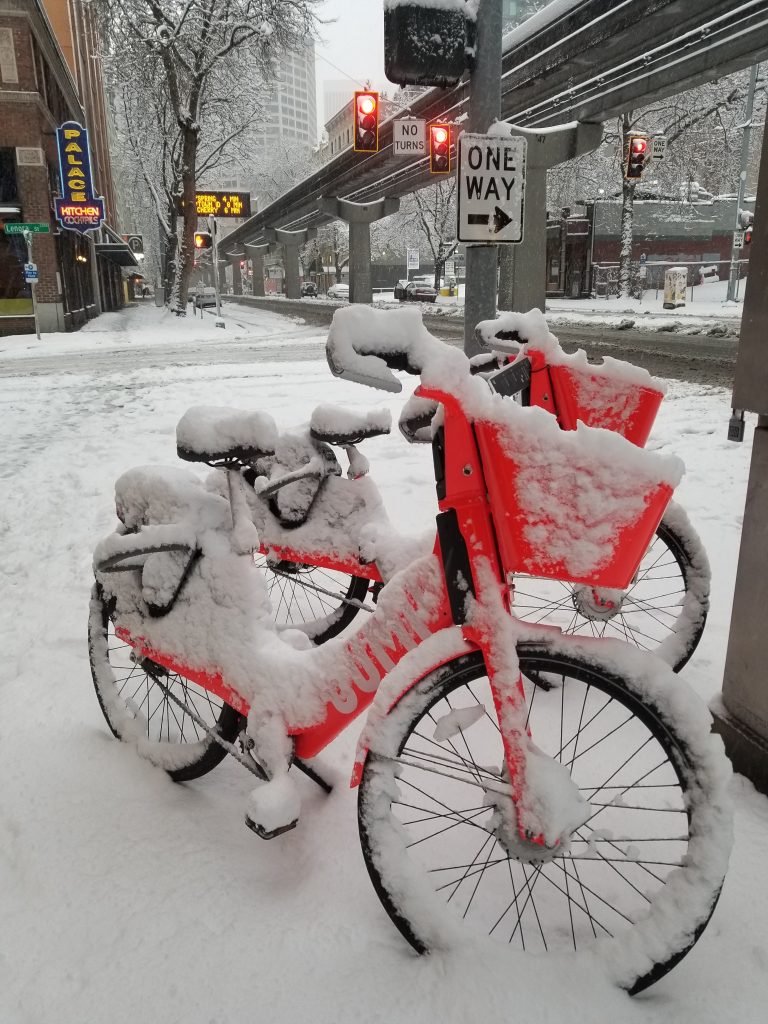
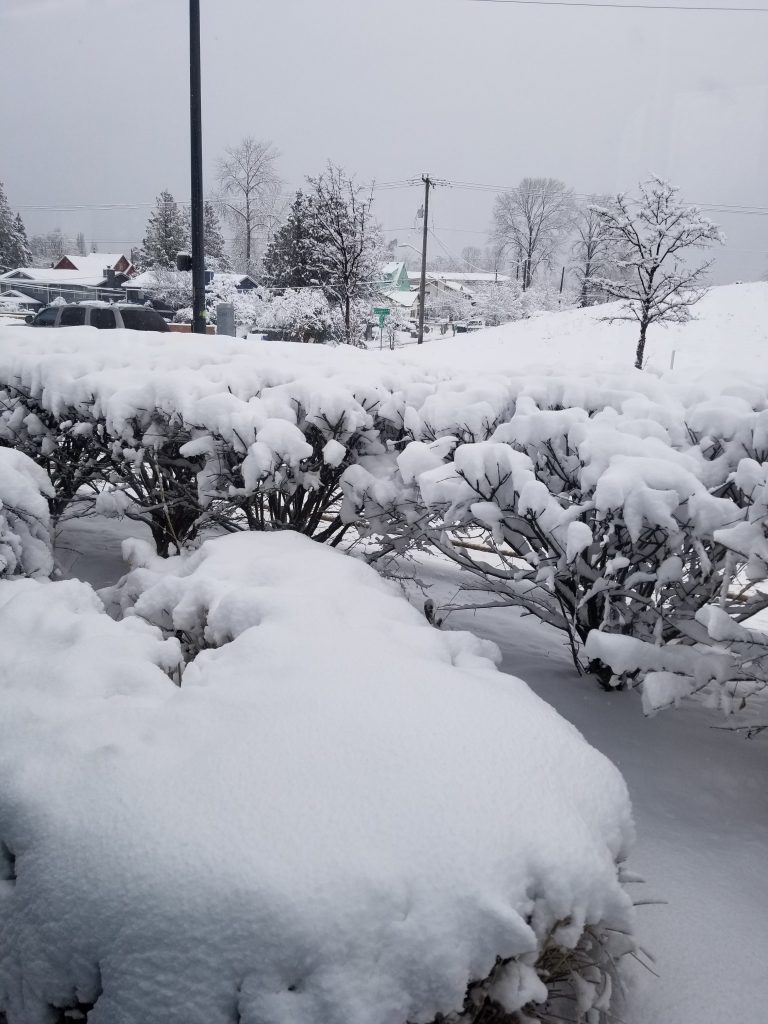
A light snow came the day I arrived in Seattle on Sunday.

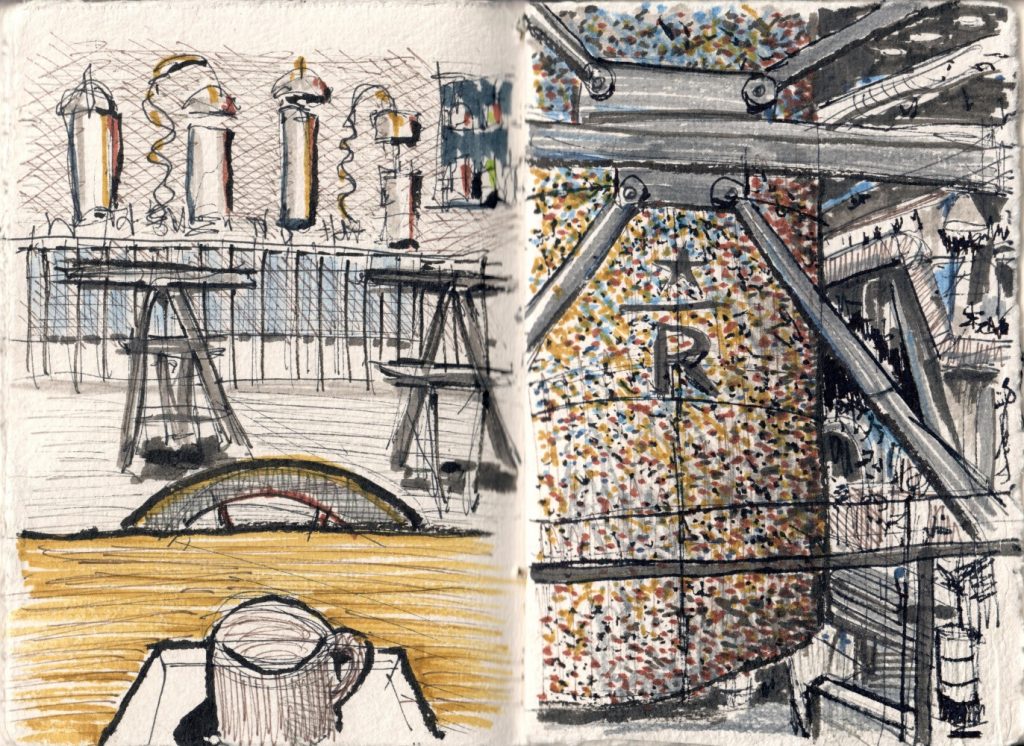
Bringing my journal with me (as I always do) I was able to capture some of Seattle.

An evening sketching at the Starbucks Reserve Roastery

I was able to catch some great talks about design, accessibility, inclusivity, and ethics, but really one of my favorite aspects of the conference was the people I met from all over the world. Students full of enthusiasm next to recruiters, next to user experience professionals, next to visionaries made an exciting, engaging, conversation. The global reach of the IxDA meant that design perspective from all over were coming together in a beautiful way. The conversations I had with the participants ranged from the tools that people used to the team dynamics that they faced – but there was a definite eagerness from everyone there to learn and grow. Definitely a growth mindset was in the air.

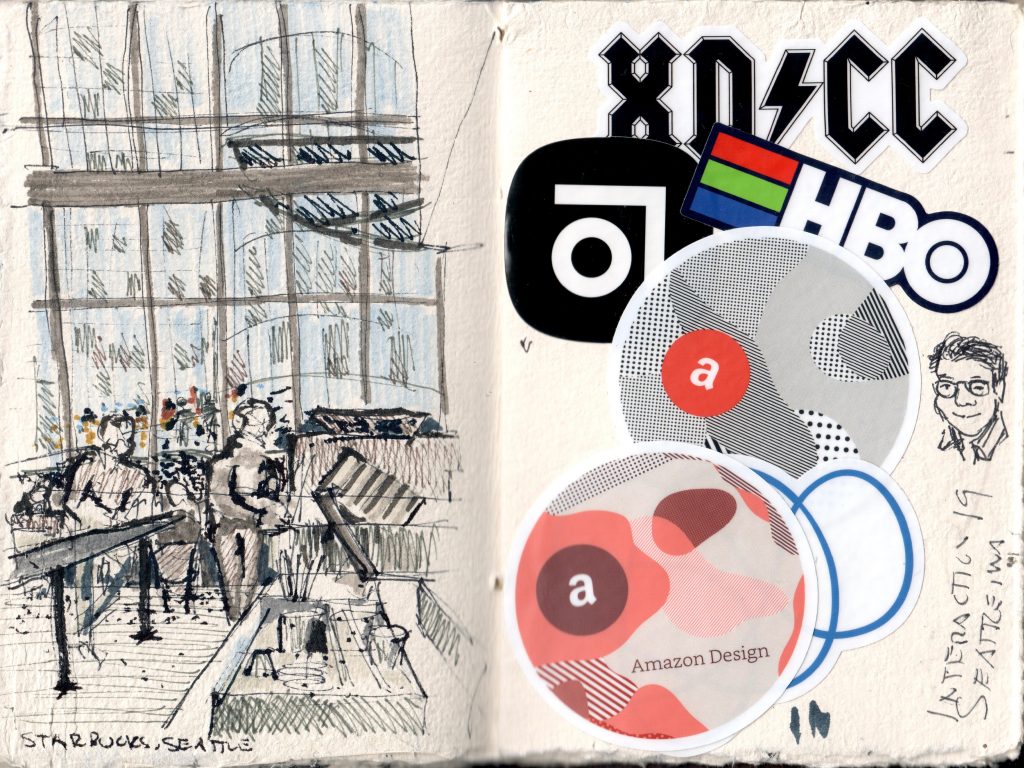
A quick sketch at Starbucks in downtown Seattle before starting my day.

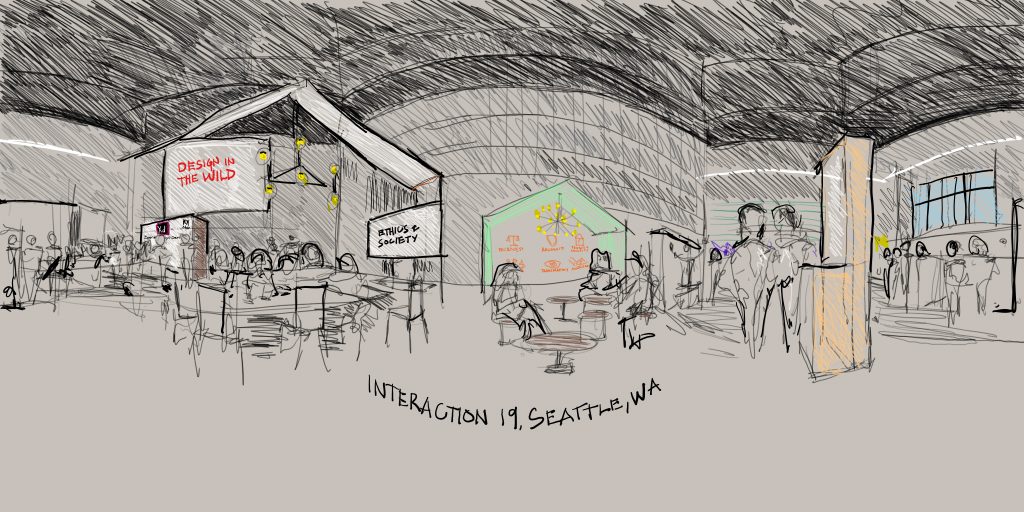
The primary reason that I was at the conference was to deliver a talk about the Sketch 360 app that the Garage helped me ship late last year. Mike Pell the chief designer in the Microsoft Garage and VR author saw an earlier version of the tool and encouraged me to publish it as it would fill a hole in the toolset of VR designers. I put a proposal out and my talk on 360 Sketching for VR Design was accepted. In preparing for the talk, I did a 360 sketch of the conference vendor pavilion where Microsoft, Adobe, Amazon, and other companies had booths. The image is below but it is best in experienced in a 360 viewer like this.

360 Sketch created with Sketch 360

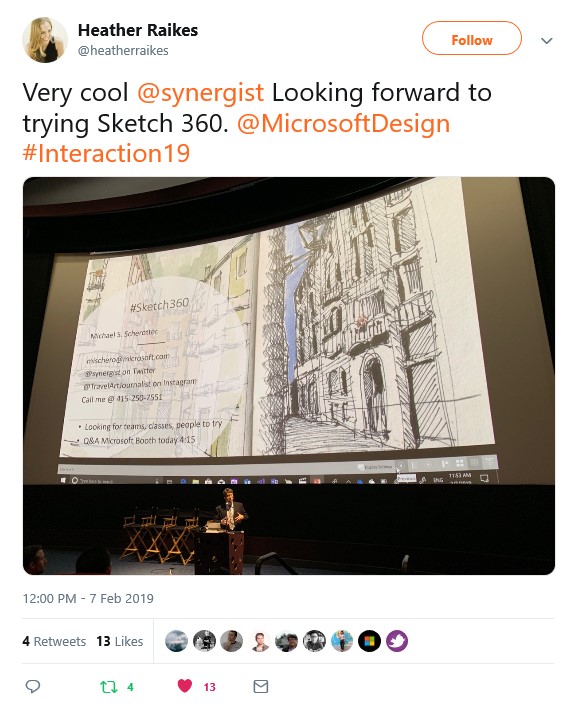
The talk went very well – no technical glitches and I got my point across: Designers have a super power – they can leverage their sketching abilities to design for VR much faster than modelers can.  Many people came up to me afterwards saying wanting to try the tool, and affirm to me that Sketch 360 would be a great tool for VR designers. In fact, one of the speakers in a talk right before me talked about how they used Sketch 360 to sketch out designs for a mixed reality experience. I’m looking forward to hearing from many of the contacts I made who were excited about the app.

Interaction 19 for a TravelArtJournalist.

If you are interested in joining me in a free online demo and tutorial on how to create 360 sketches, sign up here by filling out a short form.

My favorited talk was actually the last one where Ayse Birsel talked about Designing the Life You Love. Her passion and perspective – and straightforward perspective were beautifully presented. Though there are similarities in the title to Bill Burnett/Dave Evans Designing Your Life (one of my favorites), the perspective is different – and I love both.

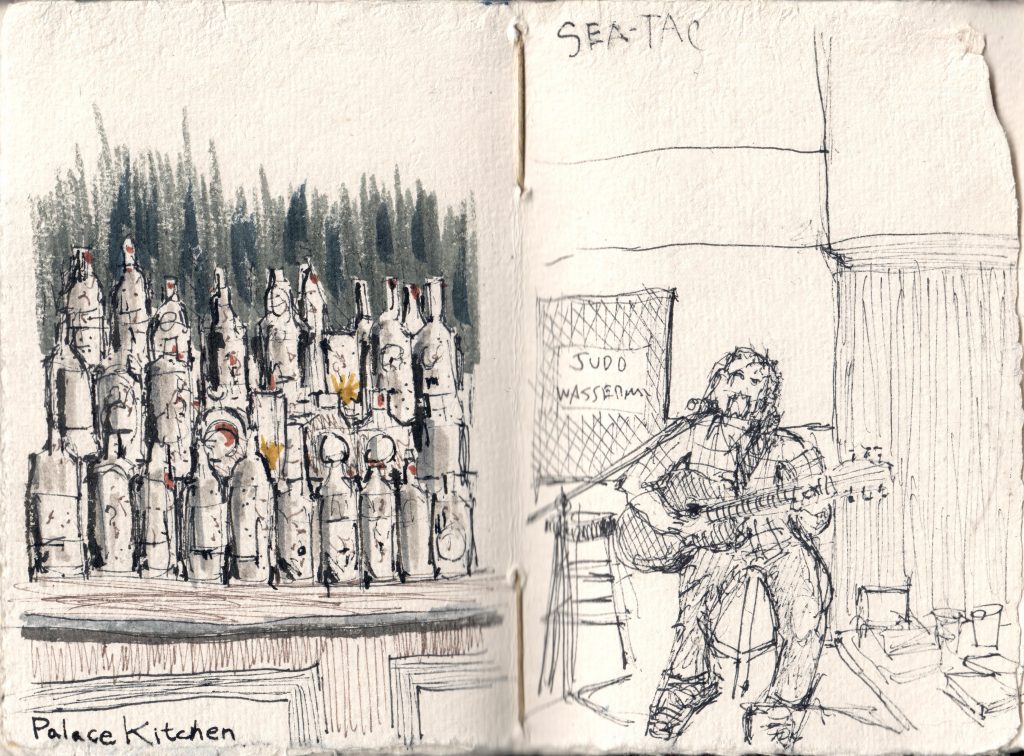
Palace Kitchen dinner and musician playing at SeaTac

I ended the trip on a humorous note, going to see Cotton Gin a hilarious improv puppet show at Pike’s Place Market. A good find.

Caught in the snow on the way back from seeing Cotton Gin
A night of snow.
View from the Link Light Rain on the Way to the Airport

The snow was crazy but in the end – my flight was changed one a few hours later and I got home safely.